Ten minutes to running.
Compose up, paste a key, open the dashboard. The seven steps below walk you from
bare metal to a live claude-code subprocess
replying in chat.
1. Prereqs
You need a Linux box with Docker 24+ (or Kubernetes 1.27+), an Anthropic API key
(or a claude CLI login), and a browser. ChannelDesk runs comfortably on a
Pi 4 if you skip the Postgres backups; for a household with active flows, a small
amd64 box with 4 GB of RAM is the sweet spot.
Pull the code.
Clone the source repo from GitHub — the Docker Compose stack lives in
docker-compose.yml, alongside a Kustomize bundle for k3s.
# 1. Clone
git clone https://github.com/channeldesk/channeldesk.git
cd channeldesk

# 2. Copy the env template
cp .env.example .env

# 3. Paste ANTHROPIC_API_KEY
nano .envdocker compose -f docker-compose.yml up -d
docker compose -f docker-compose.yml ps
NAME STATUS
channeldesk-pg running (healthy)
channeldesk-redis running (healthy)
channeldesk-orch running
channeldesk-ui runningBring up the stack.
Compose pulls Postgres, Redis, the orchestrator image and the dashboard, then starts them with sensible homelab defaults — port 4200 for the UI, 5432 stays inside the docker network.
Open the UI.
Navigate to http://localhost:4200. You'll land on the room-centric
home view — empty until you connect an integration.
- ● One card per room, optimistic toggles
- ● Same view on desktop, phone or installed PWA
- ● Add to Home Screen for the PWA shell
Connect an integration.
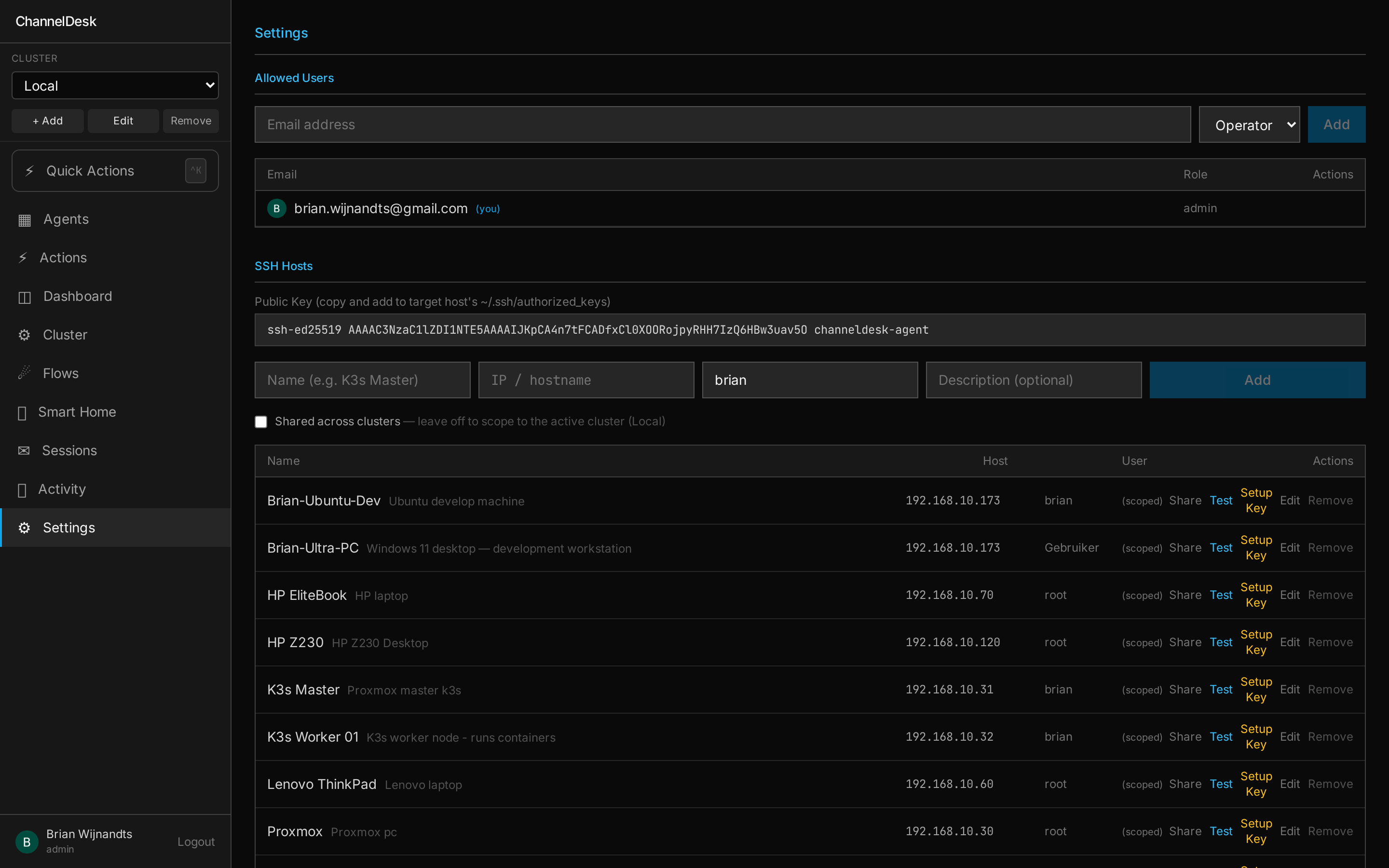
Open Settings → SSH Hosts. Click Add host, ChannelDesk shows a one-time password — paste it into the target machine's ChannelDesk install command and the host is enrolled. From then on, the stored ed25519 key does the work. Optional integrations like UniFi or Philips Hue live in the same Settings page if you want them.
Drive your first session.
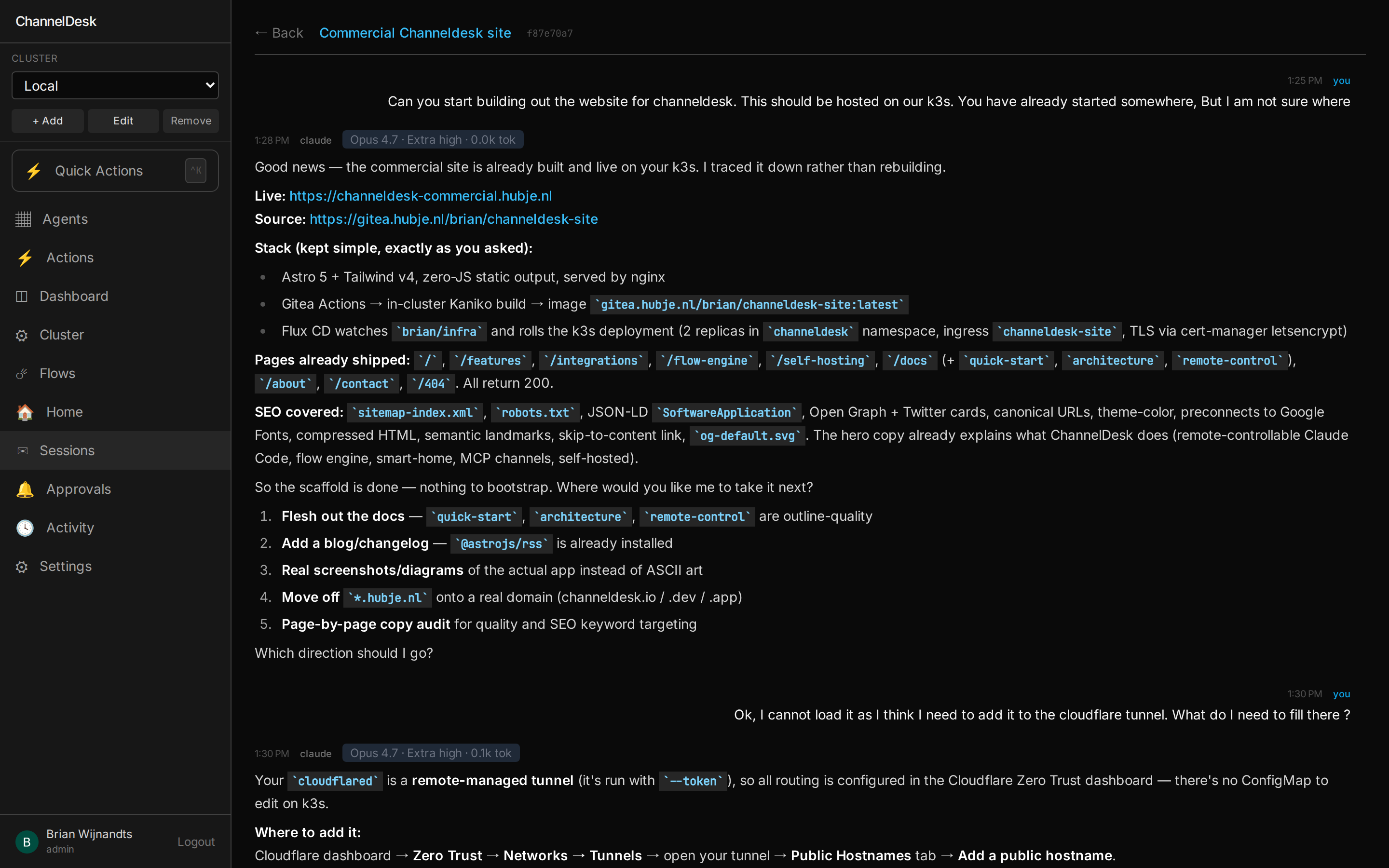
Open the in-app chat and send any prompt. A claude-code session spawns
on your box with the in-app channel tagged. The reply tool routes the
answer back to the chat panel. Telegram, Slack and webhook channels are on the
roadmap — see the integrations page.
Write your first flow.
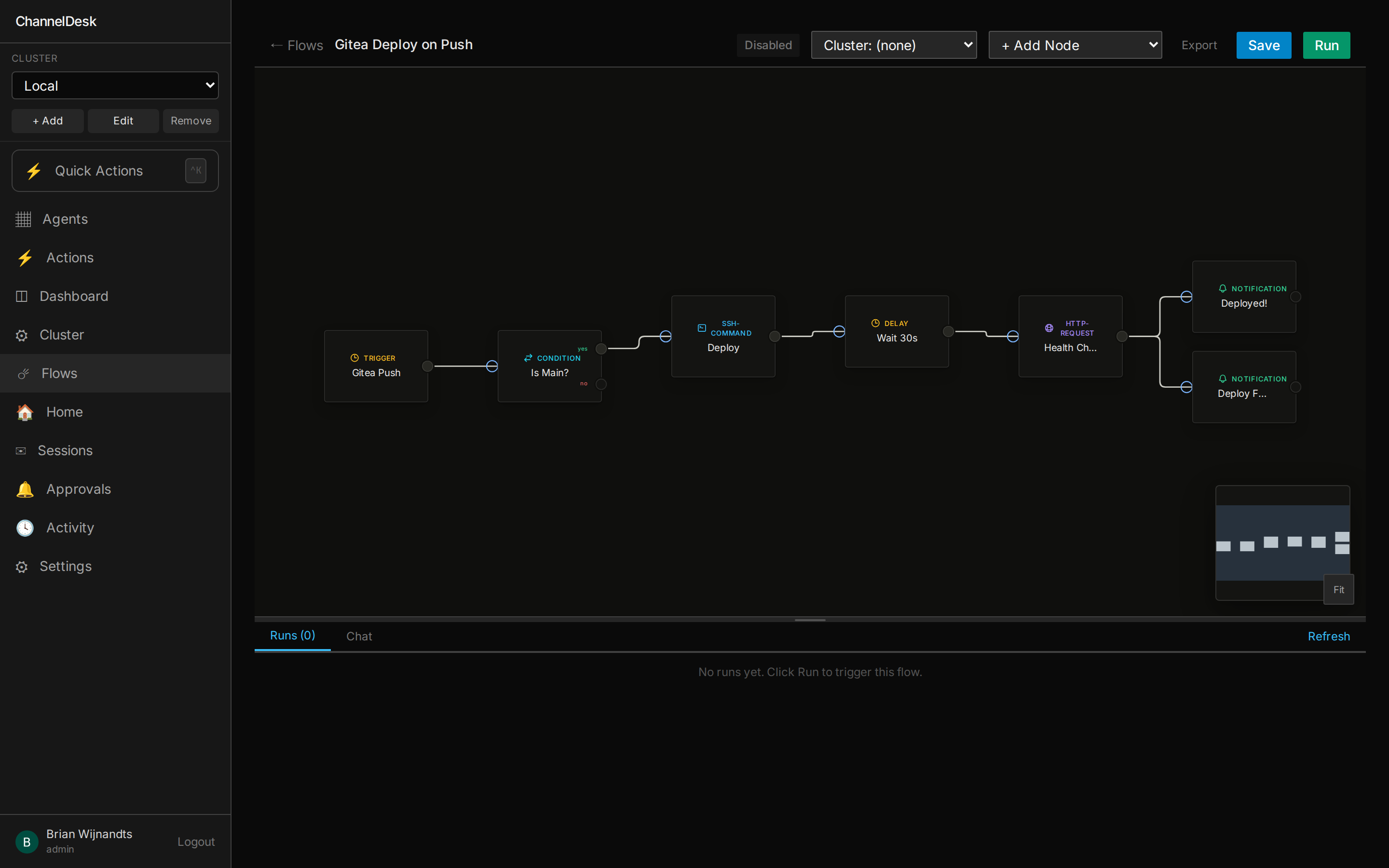
Open Flows → New. Pick a cron trigger, add a Claude step, then a channel.reply action. Save. Wait for the next tick — or run it manually from the detail view. Every run is replayable.
What next?
- Read the architecture overview to understand what each service does.
- Skim remote control to see how sessions stream over Socket.IO.
- Check the integrations list for what's shipping today.